Fogarty's Service on your phone
We're trying this first on our own used boats (LFM recon), so nothing here goes to a customer or QuickBooks. If something is confusing or broken, tell Brad or Shawn. That's the point of the trial.
1. First time: pick your username and password
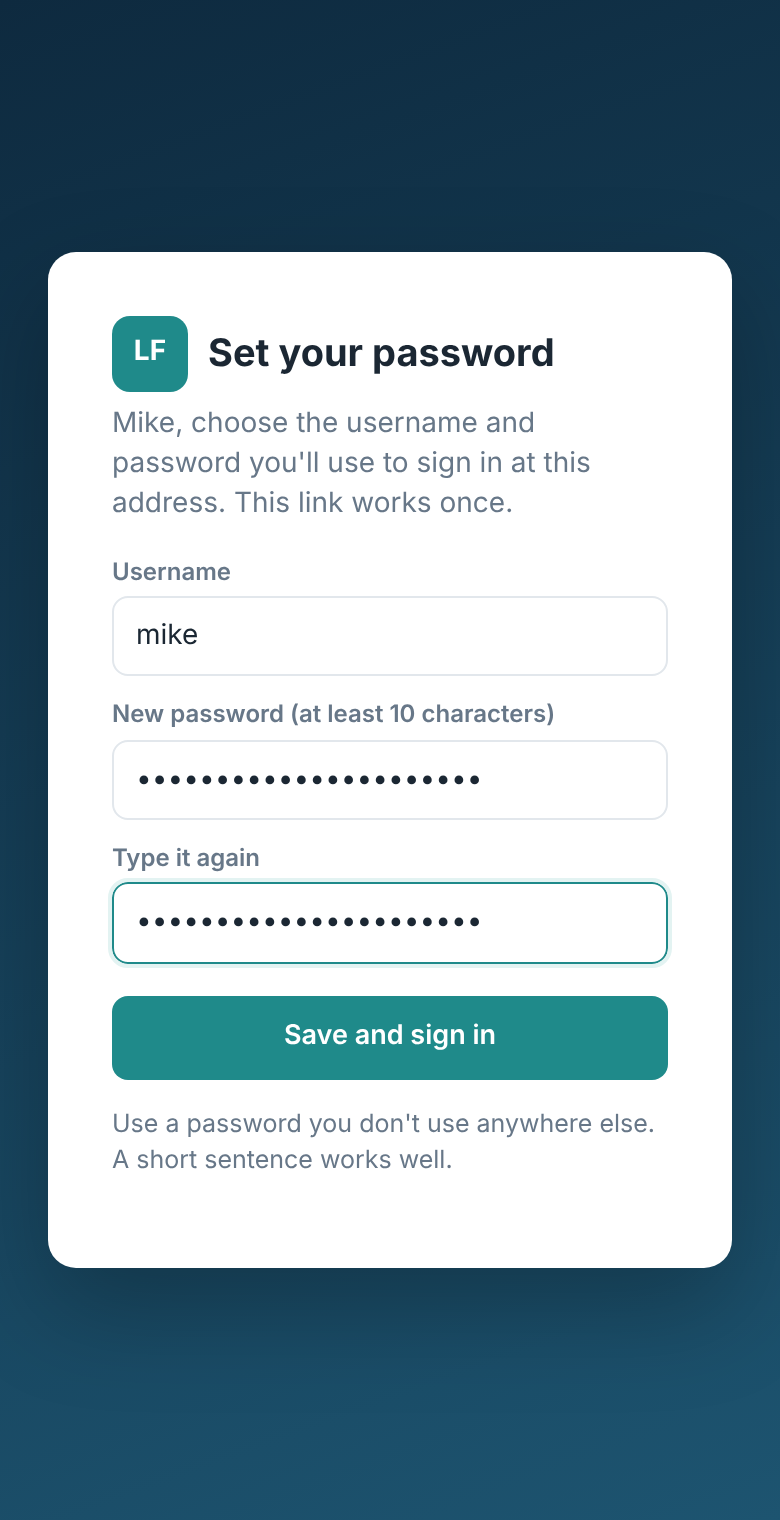
Shawn or Brad texts you a setup link (it works once, for 24 hours). Open it, pick a username (your first name is fine) and a password of at least 10 characters. A few words works well, like red pontoon trailer. Tap Save and sign in. Don't share your password; everything you do is saved under your name.
2. Signing in after that
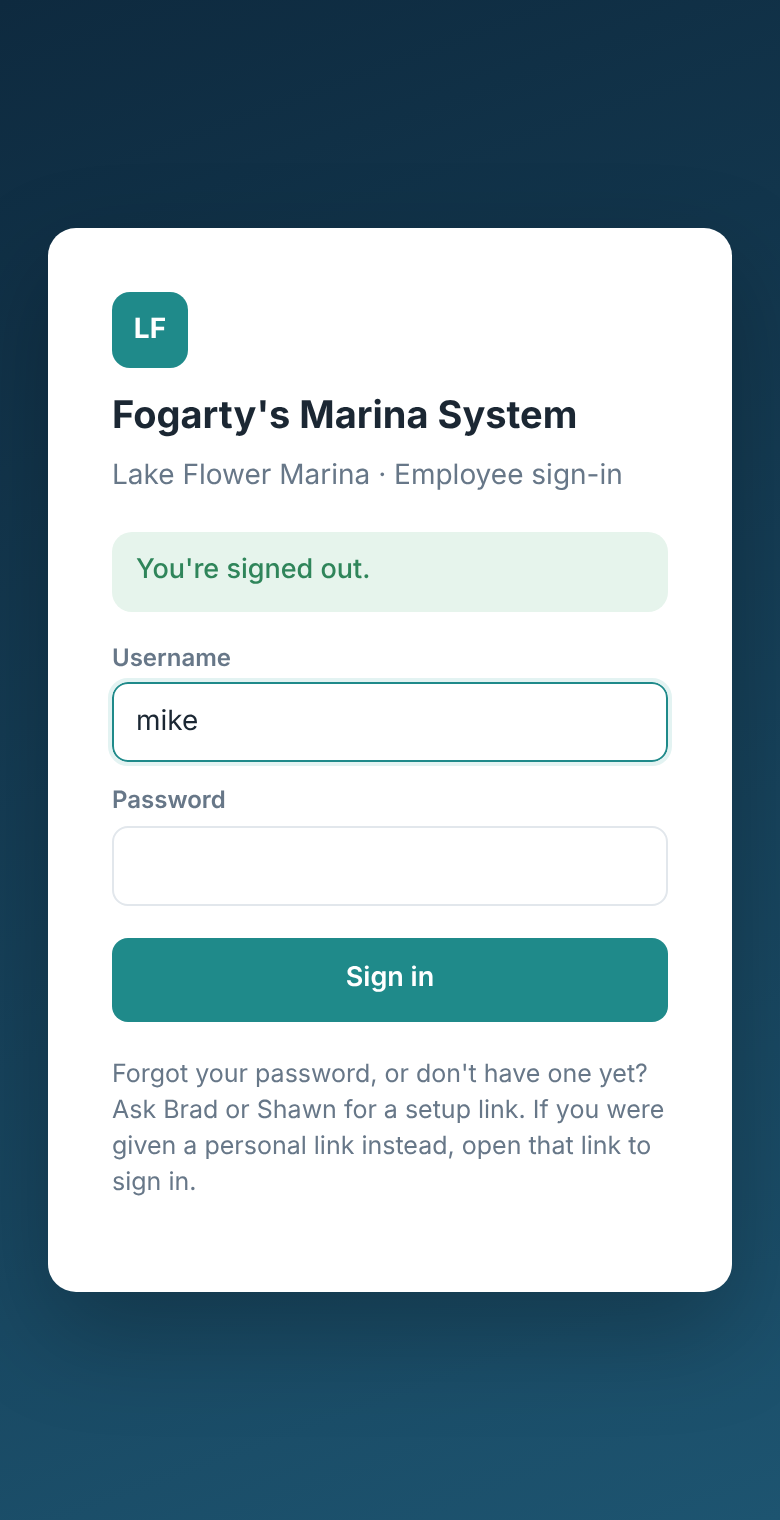
Go to marina-system.vercel.app and sign in with your username and password. Your phone stays signed in for 30 days. Tip: add it to your home screen (Share → Add to Home Screen) so it opens like an app. Forgot your password? Ask Brad or Shawn for a new setup link.
3. Today: your jobs
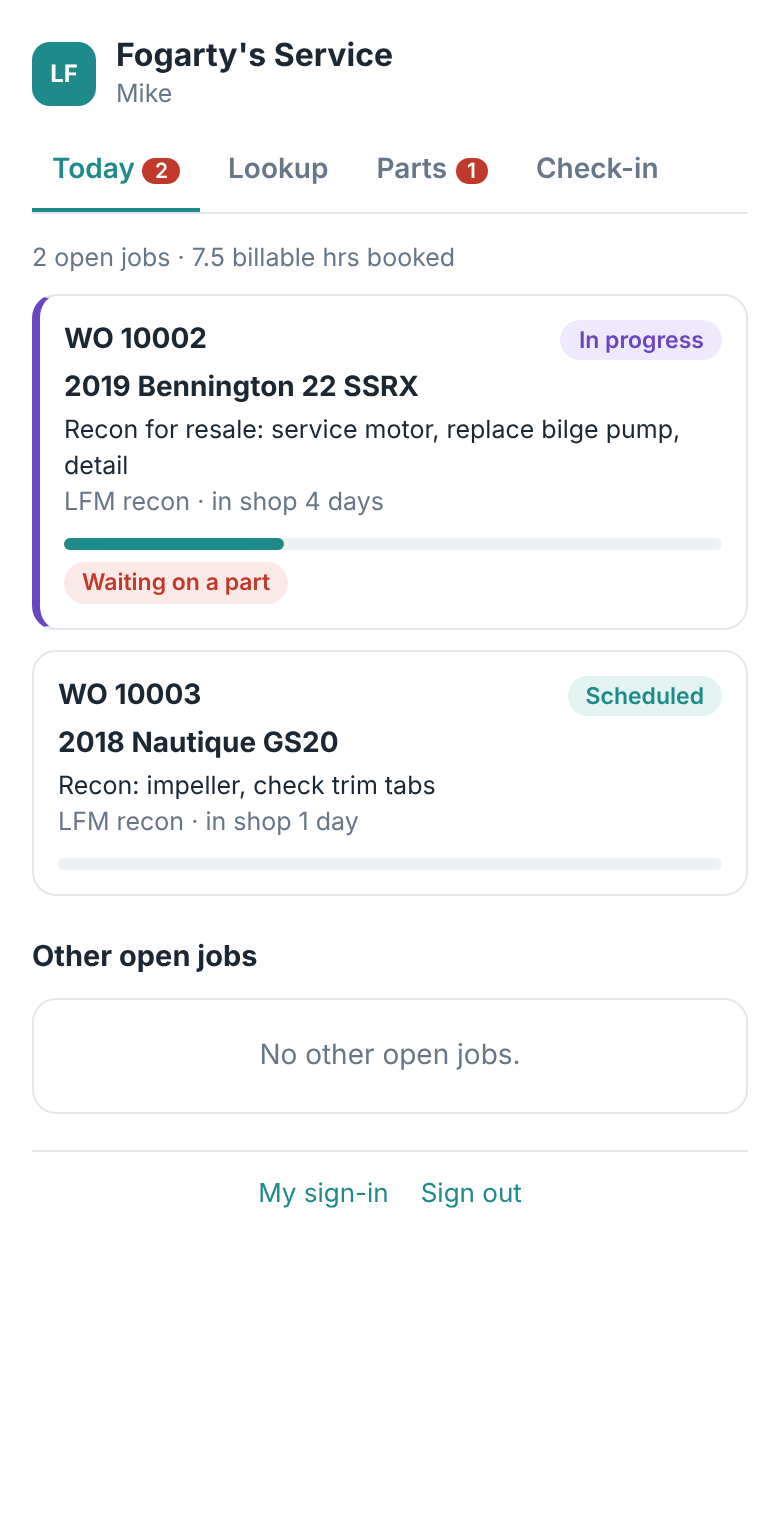
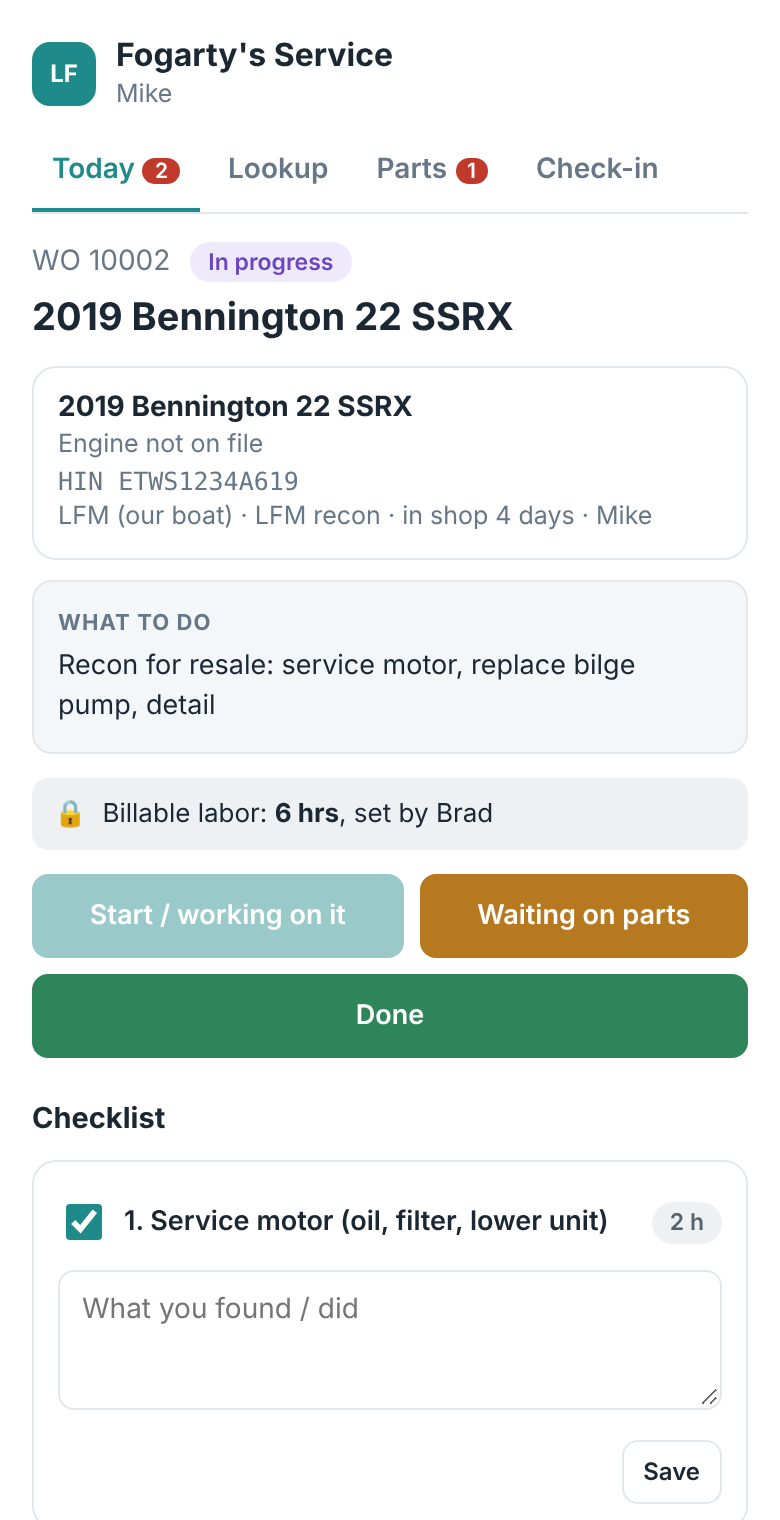
Today lists the boats assigned to you, longest in the shop first, with how many days each has been here and whether parts are still on the way. Tap a boat to open the job.
4. Working a job
Tap Start / working on it when you start. If you're stuck waiting for a part, tap Waiting on parts. When everything is finished, tap Done and Brad takes it from there. Check off each line on the checklist as you finish it and write what you found or did. Billable hours are set by Brad; you won't change them here.
5. Parts
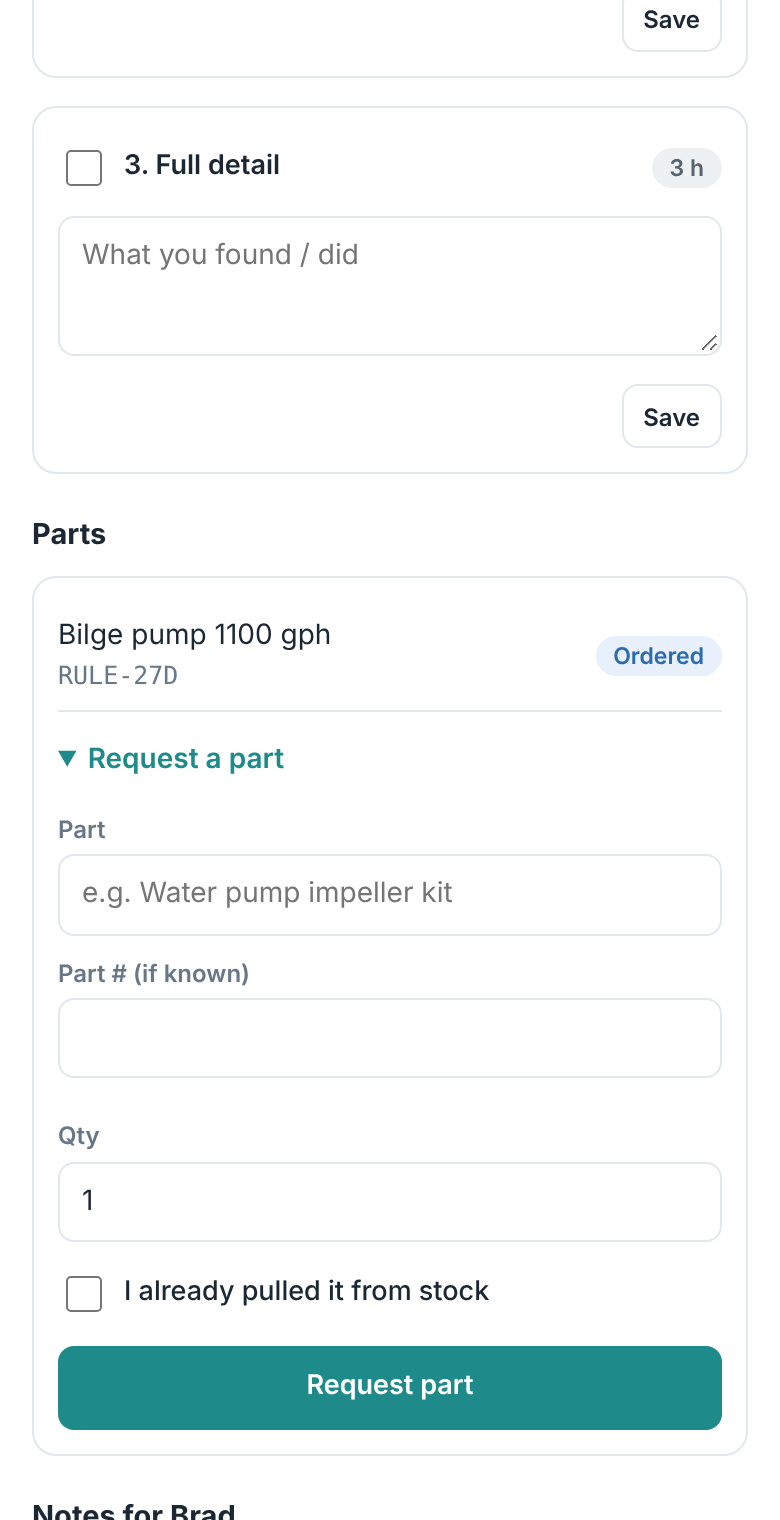
Need a part? Open Request a part, type what it is (part number if you know it) and tap Request part. Harry sees it right away and orders it; you'll see it change to Ordered, then Received. If you grabbed it off the shelf, tick I already pulled it from stock so inventory stays right. The Parts tab shows every part on your jobs and whether it's in.
6. Checking in a boat
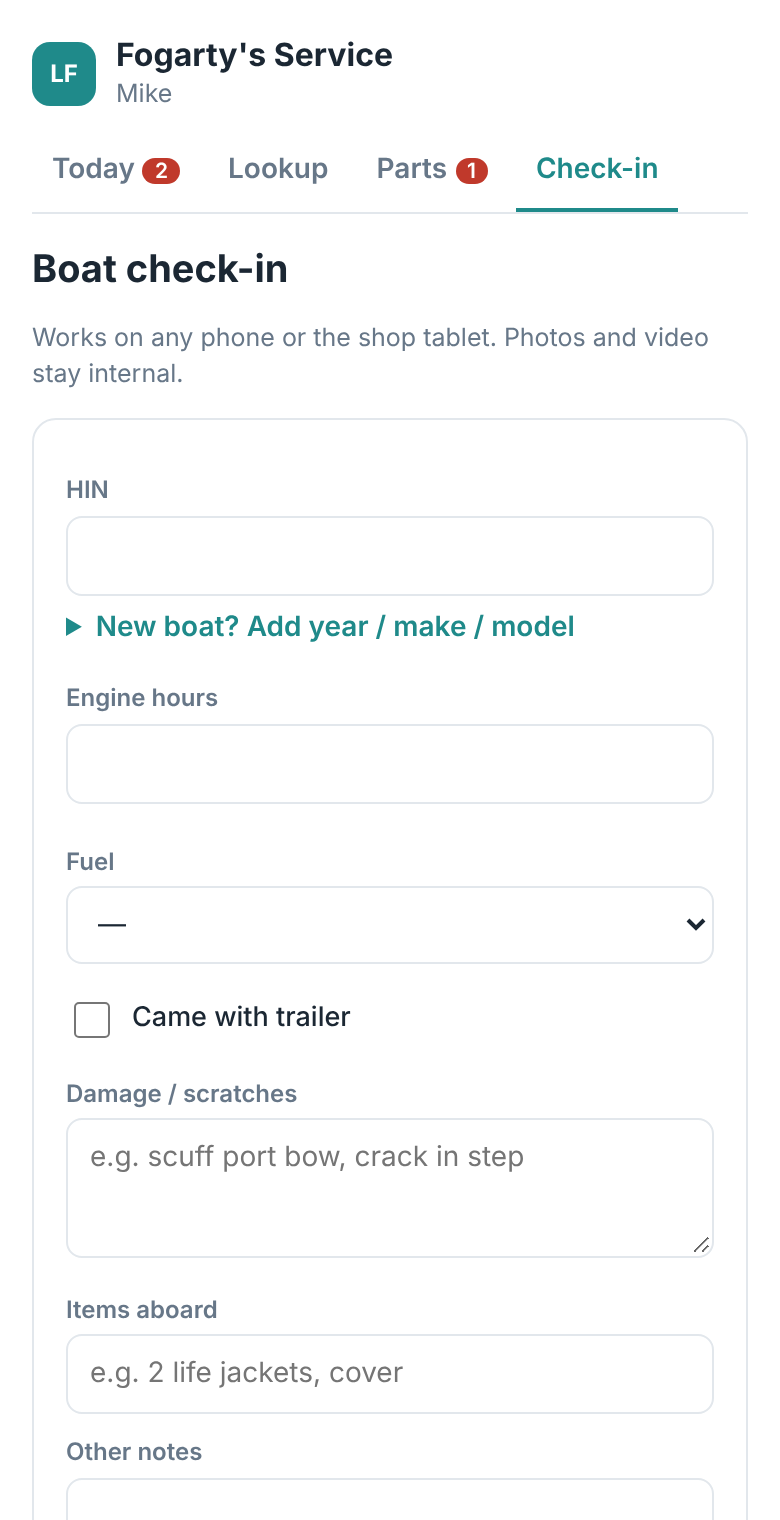
When a boat comes in: Check-in tab → find the boat by HIN → engine hours, fuel, trailer, anything aboard, and any damage. Then take photos (and a short walk-around video) of all four sides before you touch it. Photos stay inside the marina; they protect you and us if there's ever a damage question.
7. Whose boat is this?
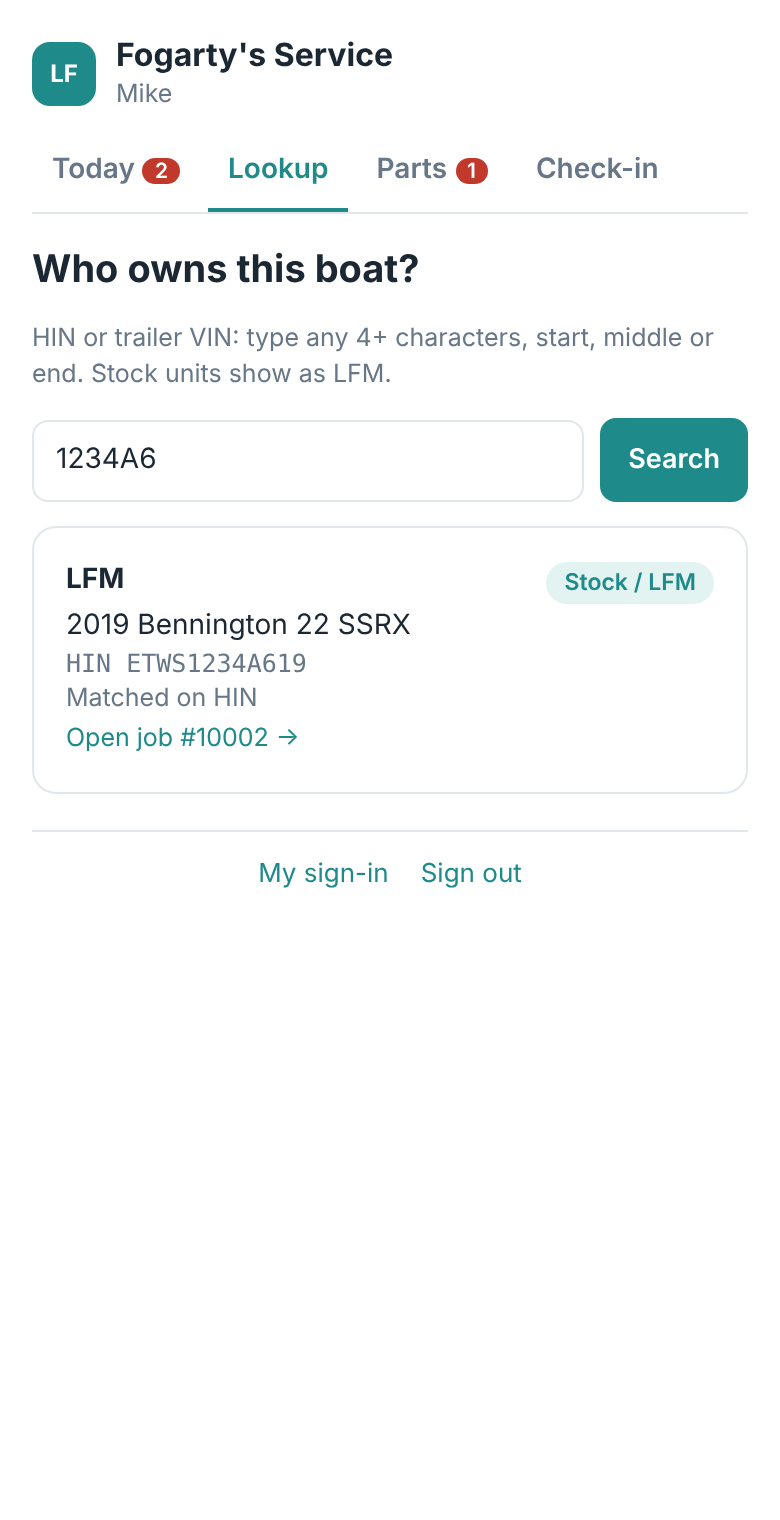
Lookup: type any 4 or more characters of a HIN or trailer VIN, start, middle or end. It shows the owner, or LFM for our own stock boats.